Adding an Item
An item is any dish or drink that appears on the menu. Here you add the item, set its price, and link it to a category.
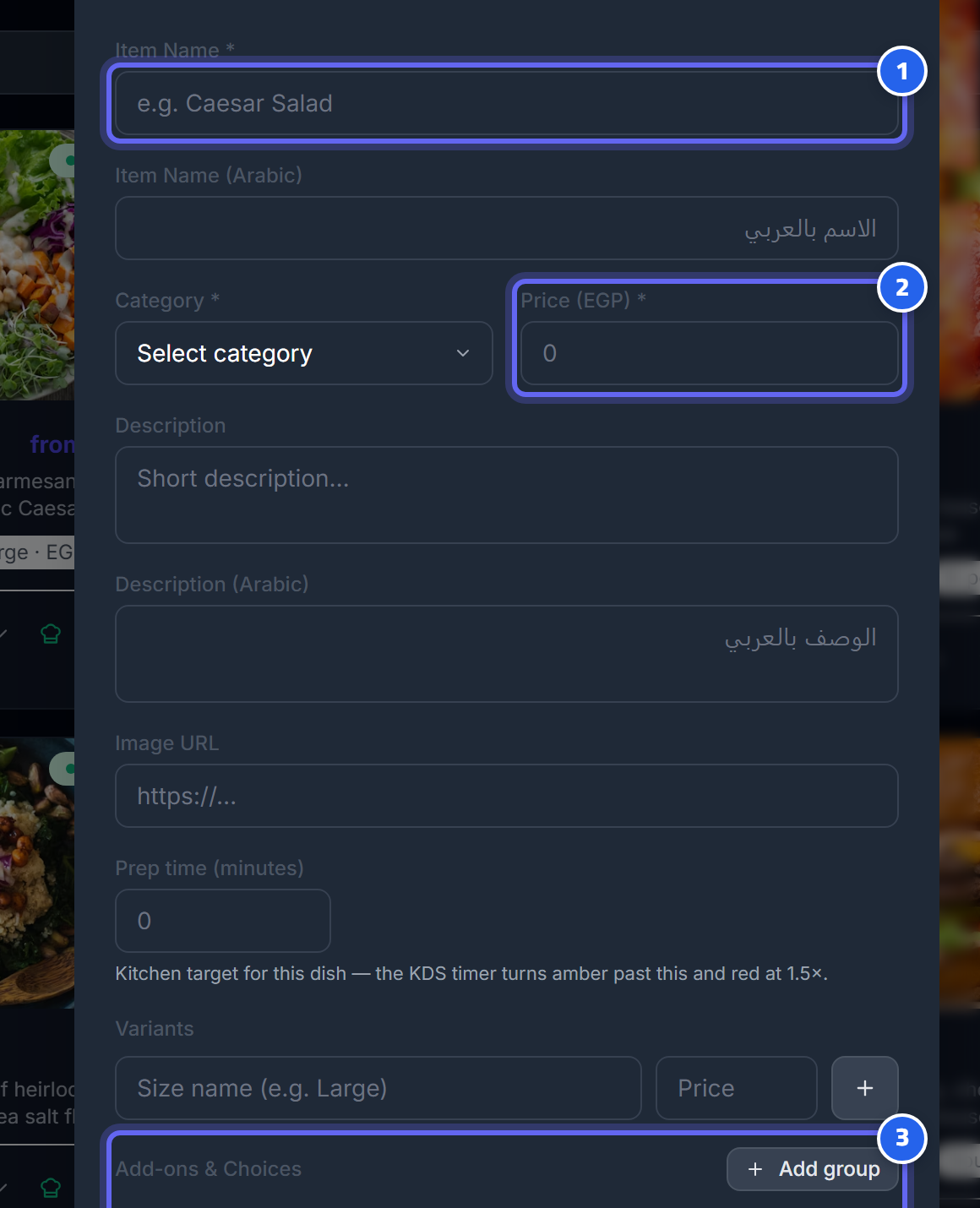
- Type the item name and choose its category
- Set the base price (must be greater than zero)
- Add the item's sizes and their prices if it has more than one size
Steps to add
- Admin panel → Menu.
- Click Add Item.
- Type the item name (Arabic/English) and choose the category it will be placed in.
- Set the base price (in EGP) — it must be greater than zero.
- (Optional) Add a description, image, prep time, and sizes and modifiers (below).
- Save.
⚠️ Warning: If you leave the item name or the category blank, or set the price to zero or blank, the system will not accept the save. Also, if you add an incomplete modifier group (without a name or without options), it will be rejected and you'll be asked to complete it.
Item states
An item has three states that control its visibility for the cashier and the customer:
| State | For the cashier | For the customer (QR menu) |
|---|---|---|
| Available (active) | Shows normally and can be sold | Shown and orderable |
| Temporarily out (out_of_stock) | Shows with an "out" mark and disabled for sale | Hidden from the menu |
| Hidden (inactive) | Shows dimmed/disabled | Hidden from the menu |
💡 Tip: On the Menu page there is a quick button that flips the item between Available and Temporarily out with a single tap — use it when an ingredient runs out mid-day instead of deleting the item and re-adding it.
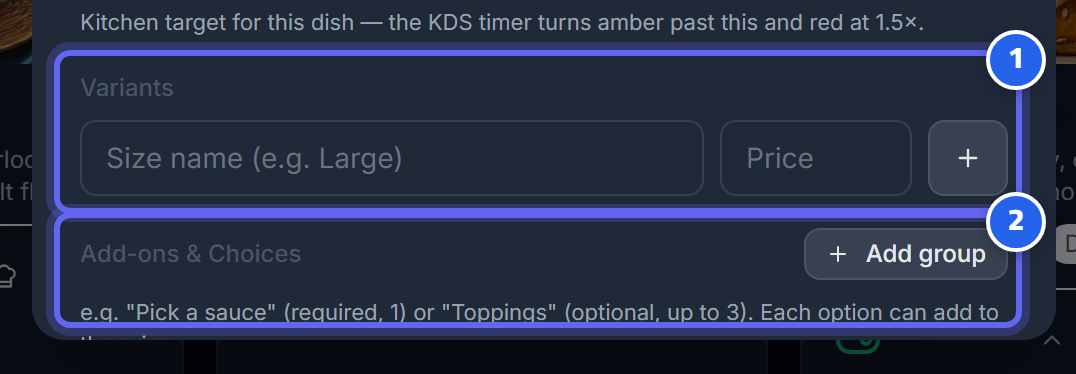
- Sizes: each size has a name and a price — and the price replaces the base price (it is not added)
- Modifiers: option groups that add to the price — click "Add Group"
Sizes (Variants)
If the item comes in sizes (small/medium/large), add a name and a dedicated price for each size.
⚠️ Important: Choosing a size completely replaces the base price — it does not add a difference on top of it. So if "large" is priced at 50, the customer pays 50 only. The menu displays the price in a "starting from" format using the lowest size price.
Modifiers
These are option groups like "Choose the sauce" or "Extra cheese". For each group you set: - The group name, whether it's required or optional, and the minimum/maximum number of choices. - Each option inside it has a name and a price difference (priceDelta) added on top of the item or size price.
Unlike sizes, a modifier adds to the price — it does not replace it.
🔒 Security: All prices are calculated by the system itself — neither the cashier nor the customer can change the price at order time, so there is no tampering.
Next: Availability Scheduling