Printing: Cashier Receipt and Kitchen Ticket
The system prints two different types of paper: the cashier receipt for the customer (with prices and the total), and the kitchen ticket for the cooks (items and quantities only, no prices). Both are printed via browser printing on an 80mm thermal printer connected to the device that opens the page — there's no special printer driver inside the system.
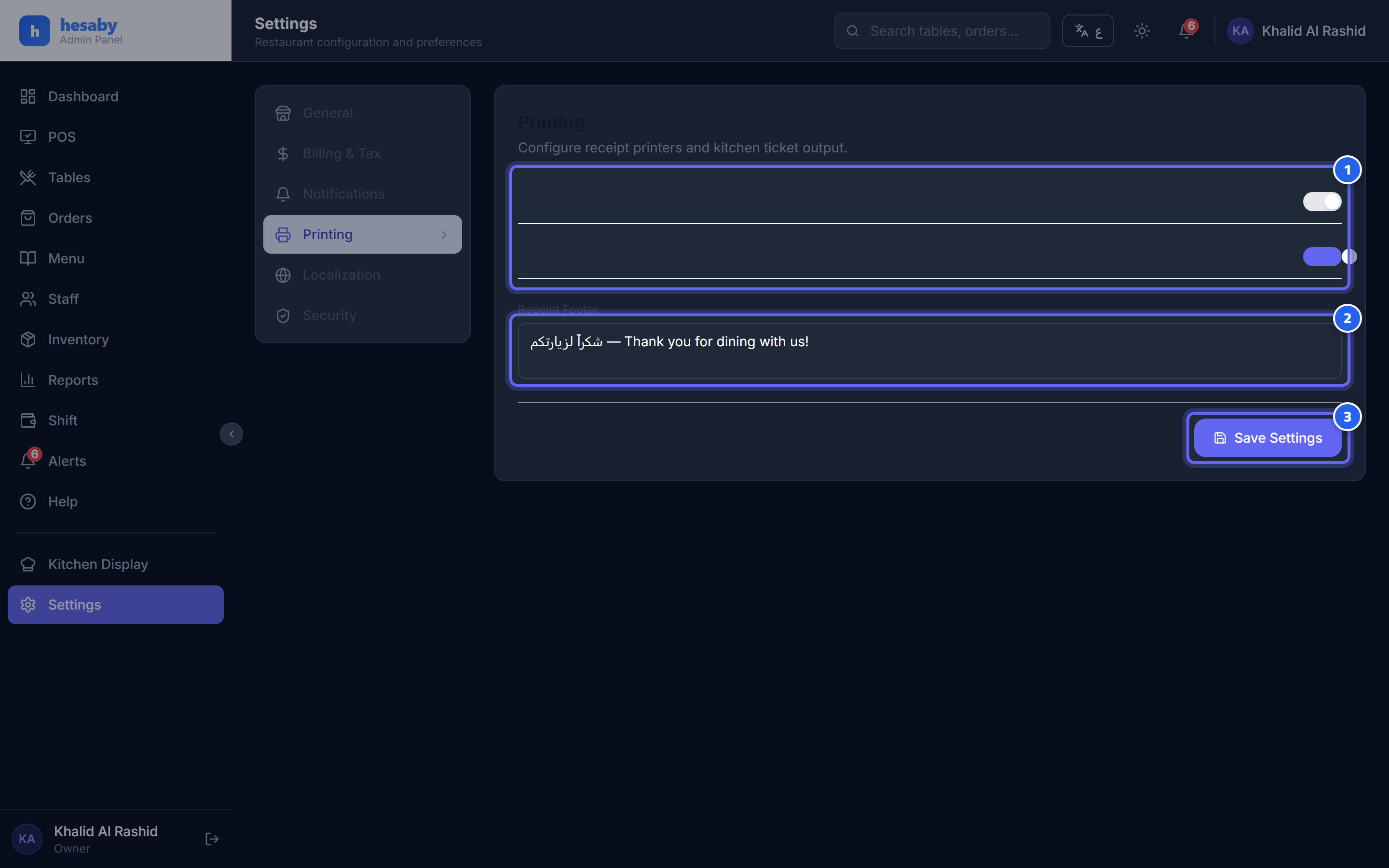
- Turn auto-printing of the receipt and kitchen ticket on/off
- Text at the bottom of the receipt (thank-you message)
- Save after editing
Cashier receipt (for the customer)
This receipt contains the items, prices, service charge, VAT (14%), and the total due + the payment method.
- Open the order from the Orders screen.
- Click Print Receipt.
- The receipt page opens in a new tab in the browser as 80mm thermal paper.
- Click the Print Receipt button at the bottom of the page (or Ctrl+P), and choose the thermal printer.
💡 Tip: In the print dialog, set Margins = None and Size = 80mm, and turn off "Headers and footers" so the page comes out clean without the browser's titles.
Kitchen ticket (for the cooks)
This ticket has no prices at all — it shows the items, quantities, add-ons, notes, and allergies in large, quick-to-read text.
- From the Kitchen (KDS) screen you can manually print any order's ticket using the Print button on the card.
- And if you enable auto-printing from the top of the screen, every new order prints by itself as soon as it arrives.
Auto-printing in the kitchen
When you enable the button, auto-printing is on, and this setting is saved on that same device/browser only.
⚠️ Warning: Silent auto-printing (without a dialog appearing for each ticket) requires the Chrome or Edge browser running in
kiosk-printingmode. In any other browser, a print dialog appears for each ticket that you must confirm manually — and the system shows you an alert about this.
Operating requirements
| Requirement | Details |
|---|---|
| Printer | Thermal, 80mm size, connected to the device that opens the page |
| Device | The cashier or the kitchen tablet that opens the print page |
| Browser | Chrome/Edge for silent auto-printing |
| Settings | Margins None + 80mm size in the print dialog |
🔒 Security: Print links are protected by a signature token — don't share them outside the system, because they display the customer's data and the invoice.