VIP Tiers
VIP tiers reward your loyal customers automatically. Each customer is promoted to a tier based on their total spending, and each tier can grant an automatic % discount on their orders — without you doing anything by hand.
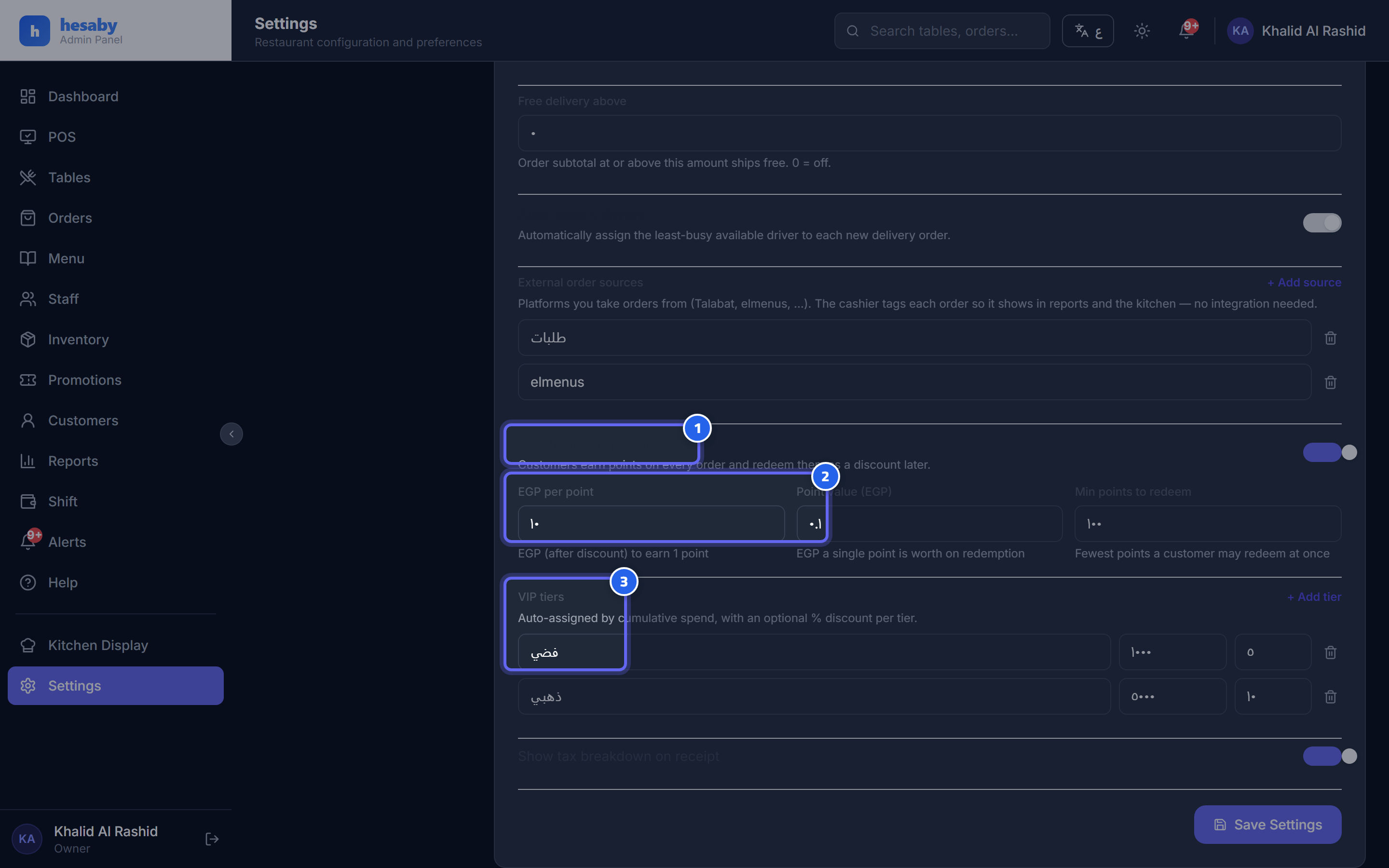
- Toggle to enable the Loyalty points program
- Earning rate, point value, and minimum points to redeem
- VIP tiers editor: name, minimum spend, and % discount
Setup
- Admin Panel → Settings → Billing & Tax section.
- When the Loyalty points program is enabled, you'll find the "VIP tiers" editor.
- Click "Add tier" and fill in the tier's details.
For each tier, fill in these fields:
| Field | Meaning |
|---|---|
| Name | The tier name (e.g. "Silver", "Gold"). |
| Minimum spend | The total spending a customer must reach to qualify for this tier. |
| Discount % | The discount percentage applied automatically to customers in this tier (optional). |
Automatic promotion
A customer is automatically promoted to the highest tier their total spending reaches, with no manual step.
At the POS
When you search for a customer by phone number, their tier discount is applied automatically: - A line with a 👑 marker appears showing the discount. - A tier badge appears next to the customer's name.
On the "Customers" page
The tier badge (👑) appears on the customer card and also in their details, so you can quickly see each customer's tier.
💡 The tier updates automatically after every order based on the new spending, so there's nothing to update manually.
⚠️ Note: VIP tiers are tied to the Loyalty points program — it must be enabled, otherwise the editor won't appear and tiers won't work.