Add a Staff Member and Assign a PIN
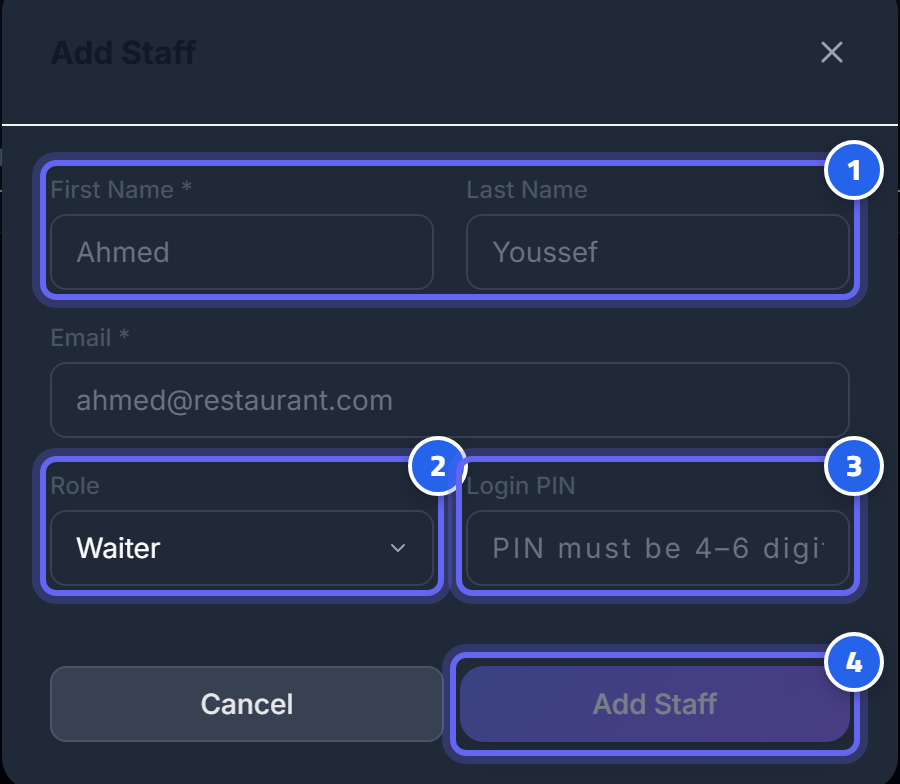 Add staff window: name, role, and PIN — then save
- Enter the staff member's name (and email address)
- Choose the role: cashier / waiter / manager…
- Set a PIN for login (4–6 digits)
- Click "Add Staff" to save
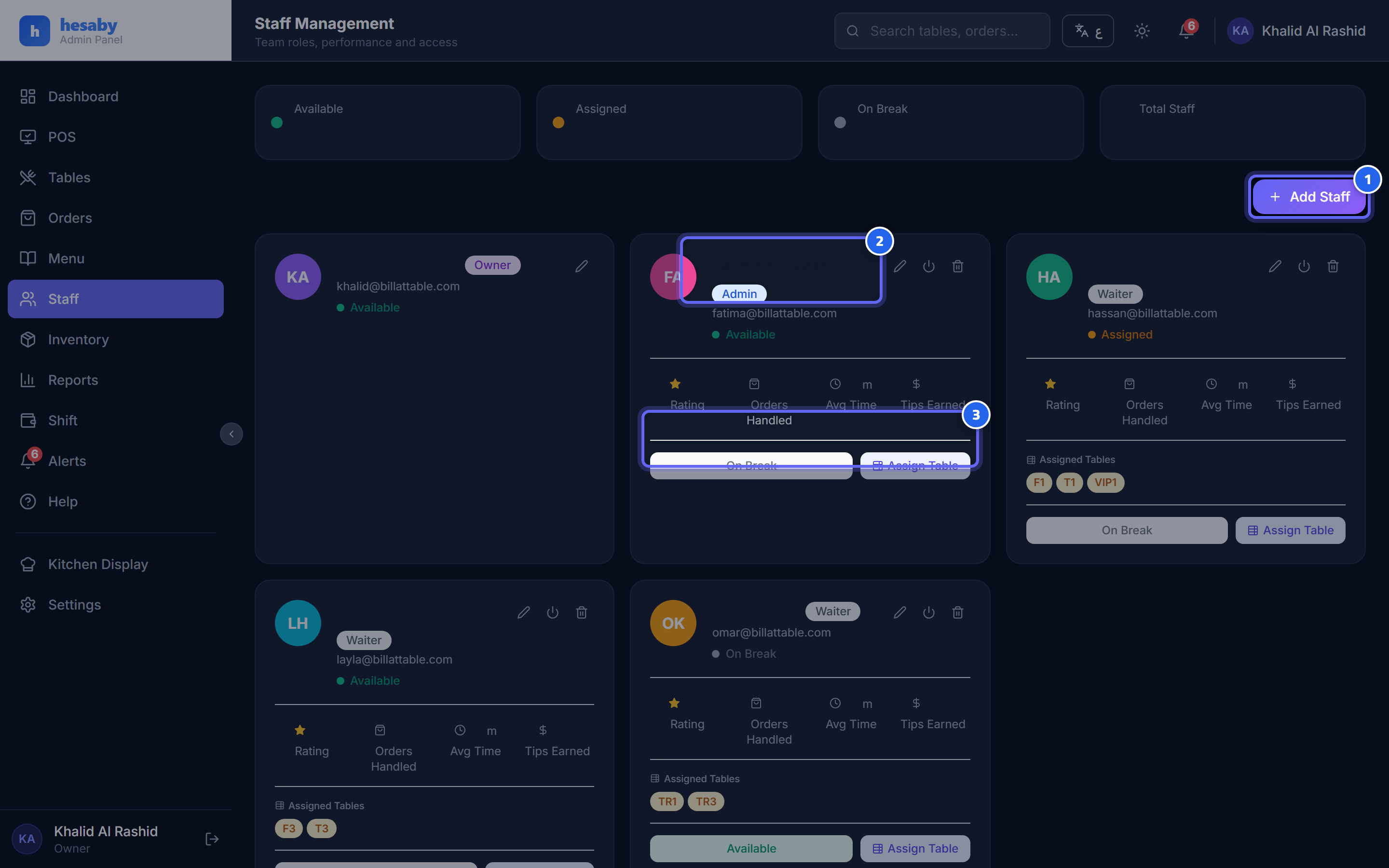 Staff management page: the staff list, their roles, and the Add Staff button
- Click "Add Staff" to add a new staff member
- Each staff member's role appears here next to their name
- From here you manage each staff member's status and permissions
Adding a staff member
- Admin panel → Staff → Add Staff.
- Enter the name and email, and choose the role (owner/manager/cashier/waiter/kitchen/driver).
- Set a PIN (4–6 digits) — or let the system generate one.
- Save.
PINs
- Each staff member logs in with their own PIN — so the system knows who did what.
- Hand each staff member their PIN privately; don't write it somewhere visible.
- For a first-time bulk setup, the system generates one-time random PINs (there are no default PINs).
Security tip
- Use the least sufficient role for each staff member (for example, give a waiter the "waiter" role, not "manager").
- Change the PIN immediately if a staff member leaves or the PIN is leaked.
Next: Suspend / Remove a Staff Member