Voiding and Void/Comp
Two tools for removing items from the bill — with an important difference:
| Void (remove item) | Comp (complimentary) | |
|---|---|---|
| The item | Removed from the bill | Stays on the ticket (the kitchen made it) |
| The price | The guest isn't charged for it | Becomes zero (free) |
| Inventory | The ingredients return if the kitchen hasn't started yet | Don't return (the food was made) |
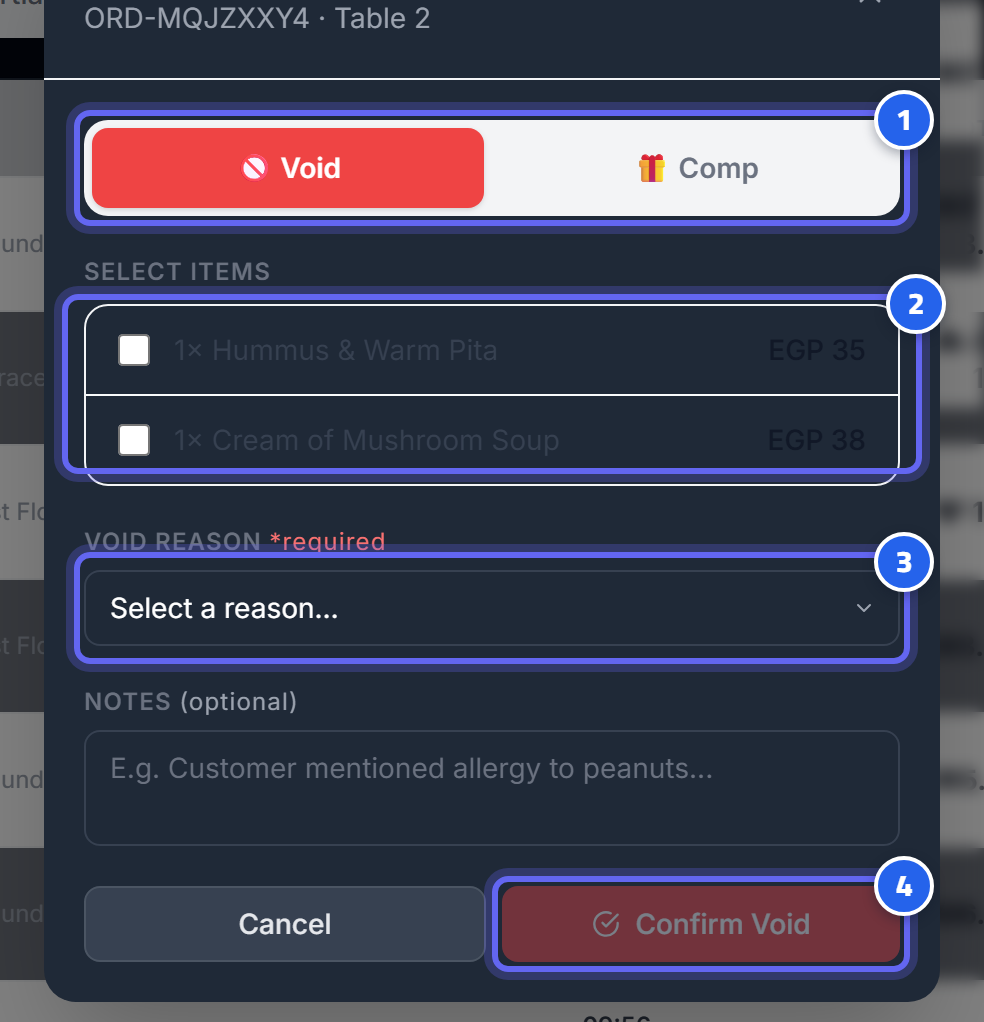
- Choose the type: "Void" or "Comp"
- Select the items you want to void or comp
- Choose the reason from the list
- Confirm — it's recorded in the loss-prevention report
Steps
- Open the order → choose void or comp.
- Select the item(s) and the reason.
- If you aren't a manager → manager approval (PIN).
- The system applies the change, records an audit row (who did it, who approved, the value, the reason), and if the order ends up overpaid → it flags a refund.
The Value Is Calculated by the System
The void/comp value is calculated from the order's actual items — not from a number typed by the employee. So there's no tampering.
All of these operations appear in the Loss-Prevention Report.
Next: Kitchen Display System