Discount Coupons
Discount coupons are codes the cashier enters at checkout to apply a discount to an order. Here you create the codes, set the discount value and its conditions, and the cashier later uses them at the POS.
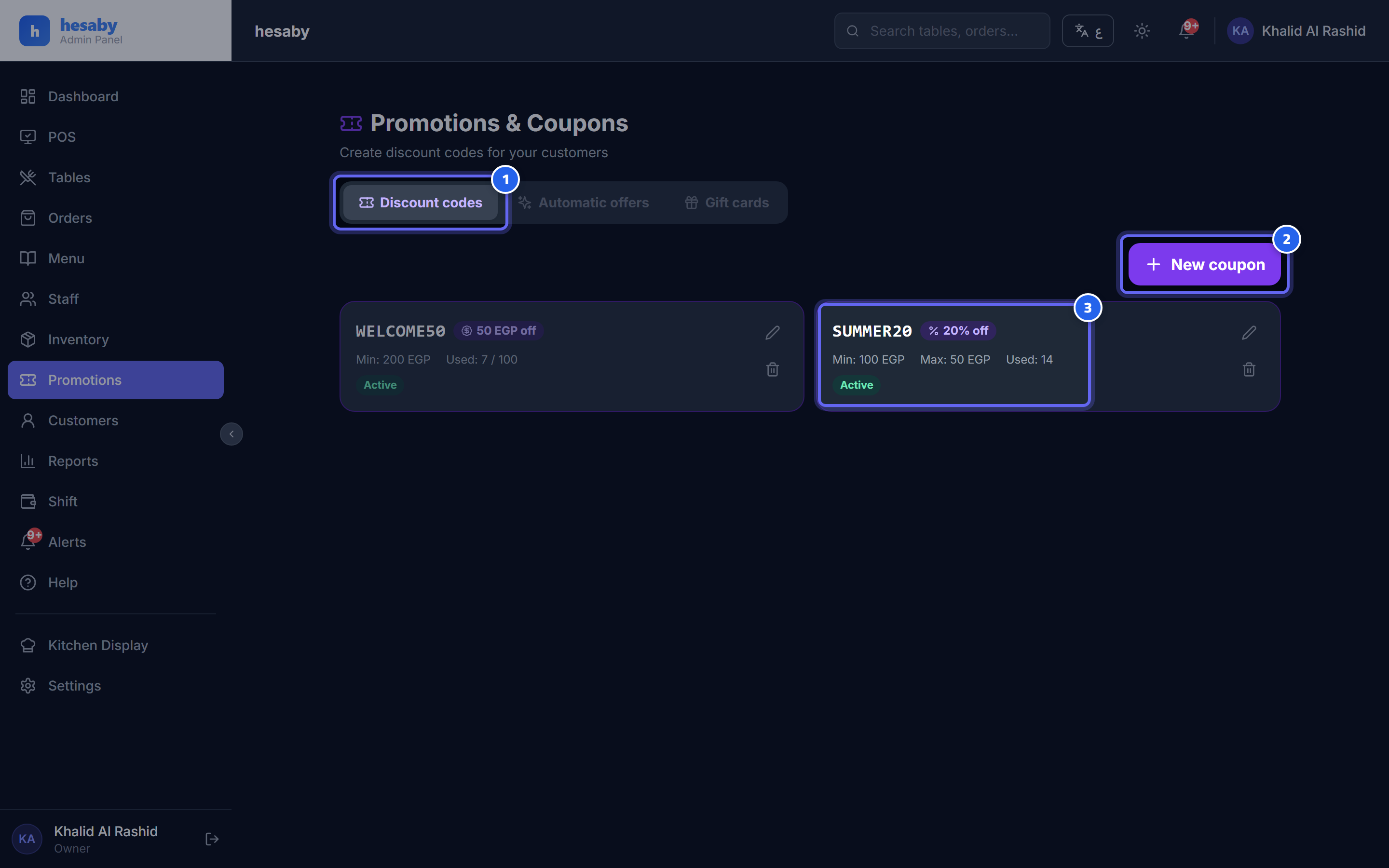
- Page tabs: Discount codes / Automatic offers / Gift cards
- The "New coupon" button to create a discount code
- The coupon card: the code, discount percentage, and usage counter
Create a new coupon
- Admin Panel → sidebar → "Promotions & Coupons" (ticket icon).
- Open the "Discount codes" tab.
- Click the "New coupon" button.
- Fill in the fields and save.
Coupon fields
| Field | Description |
|---|---|
| Code | Letters/numbers, automatically converted to uppercase |
| Type | Choose "Percentage %" or "Fixed amount" |
| Value | The discount value (percentage or amount, depending on the type) |
| Minimum order | Optional; the smallest order value for the code to work |
| Max discount | For percentage only, and zero = no limit |
| Number of uses | Zero = unlimited |
| Expiry date | Optional |
| Enabled | A switch that turns the code on or off |
Apply the code at the POS
- From the POS, at checkout, you'll find a "Discount code" field.
- Enter the code and click "Apply".
- The discount will appear in the total.
⚠️ Warning: If the code is wrong, expired, out of uses, or the order is below the minimum, a message will appear and the discount won't be applied.
Permissions
Creating, editing, and deleting coupons is for the owner, admin, and manager only. The cashier can apply the code to an order but cannot create it.
💡 The code is unique per restaurant, meaning you can't reuse the same code twice. The discount is calculated on the total before tax and service.