Adding Categories
Categories organize your menu into logical groups (for example: hot drinks, cold drinks, sandwiches, desserts), and they appear in the exact order you set — for the customer on the menu screen and for the cashier when taking an order.
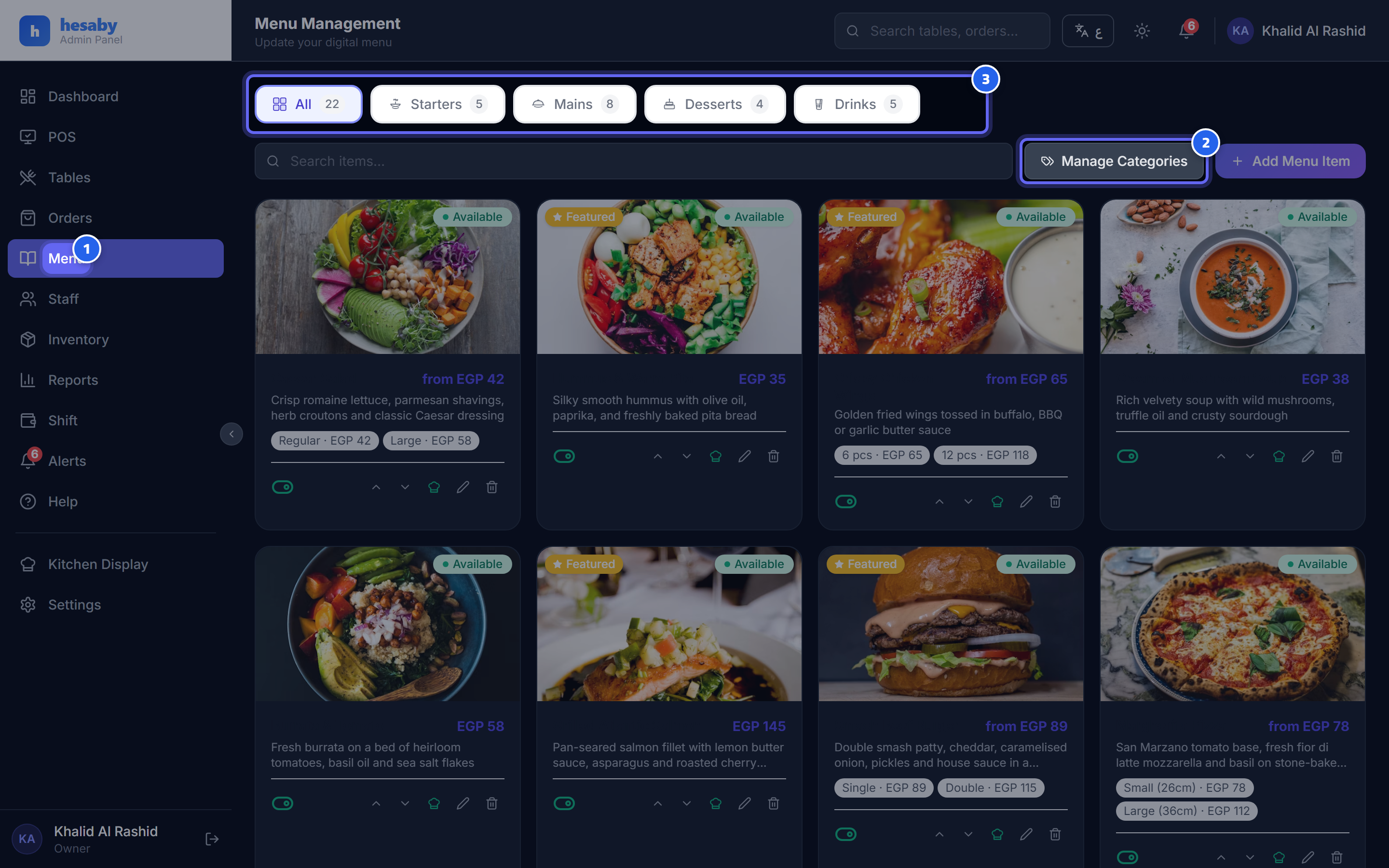
- Open the admin panel ← "Menu" to reach the menu
- Click "Manage Categories" to add a category or reorder categories
- Category tabs appear in the exact order you set
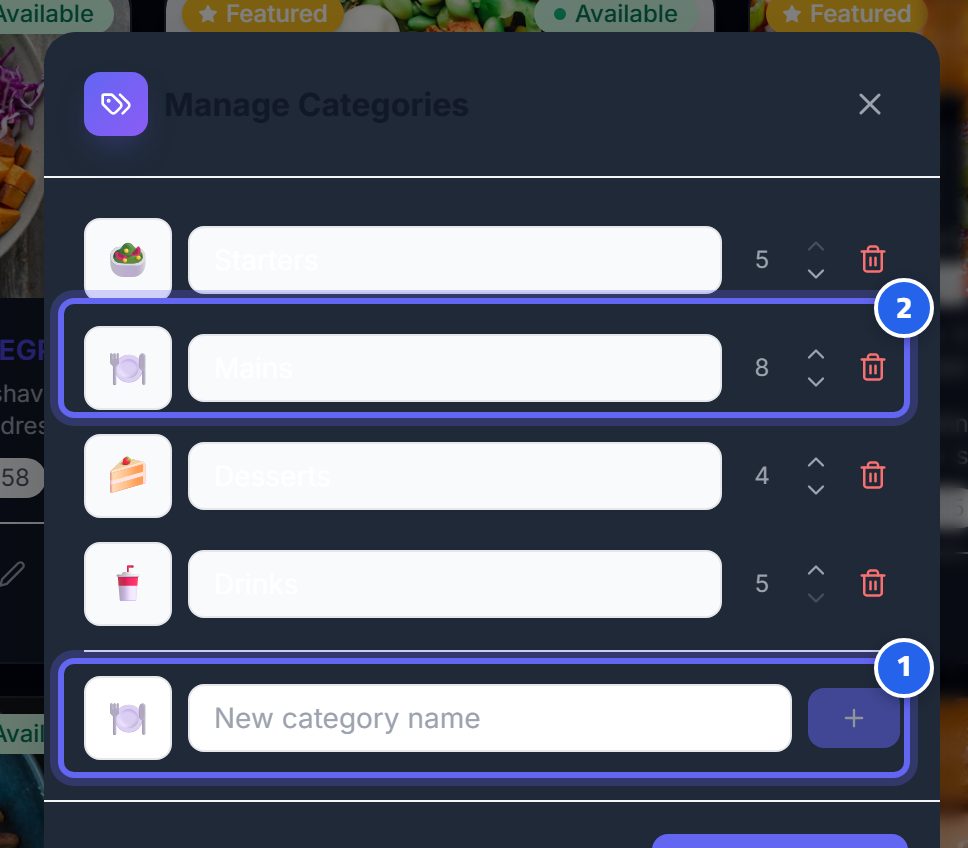
- Type the new category name and click "+" to add it
- For each category you can reorder it (▲▼) or delete it using the buttons next to it
Who can manage categories
Categories are managed only from the admin panel, so you must be logged in with an account that has access to the panel. A regular staff member on the order screen cannot add a category or change its order.
🔒 Security: Use an account in your own name to log in to the panel, and change any default access codes before you open the restaurant for business.
Adding a category
- Open the admin panel ← Menu, and go to the category list.
- In the add field at the bottom, type the category name.
- Choose an emoji for the category (optional — if left blank, 🍽️ is used by default).
- Click Add and the category is saved immediately and appears in the list.
Editing a category name or emoji
- Edit the Name field or the Emoji field for the category you want.
- Move out of the field (saving happens automatically as soon as you leave it).
- If a save error occurs, the system restores the data as it was and shows you a message.
Ordering categories
The order is changed using the move buttons, not by dragging:
| Button | What it does |
|---|---|
| Up arrow ▲ | Moves the category one step up |
| Down arrow ▼ | Moves the category one step down |
The button is disabled when the category is the first one (nothing above it) or the last one (nothing below it). The change is saved immediately and applied to both the customer and cashier screens.
Deleting a category
- Click the trash 🗑️ icon next to the category.
- If the category still contains items, deletion is blocked and a text message appears stating that the category cannot be deleted.
⚠️ Warning: The system shows you a text message only, without printing the number of items. To delete the category, move its items to another category or delete them first, then repeat the deletion.
Next: Adding an Item