Automatic Offers (Combo / BOGO / Happy Hour)
Automatic offers work on their own without the cashier entering any code. As soon as the cart matches the offer's conditions, the discount is applied immediately. Here you create the offer, set its type, and define when it's active.
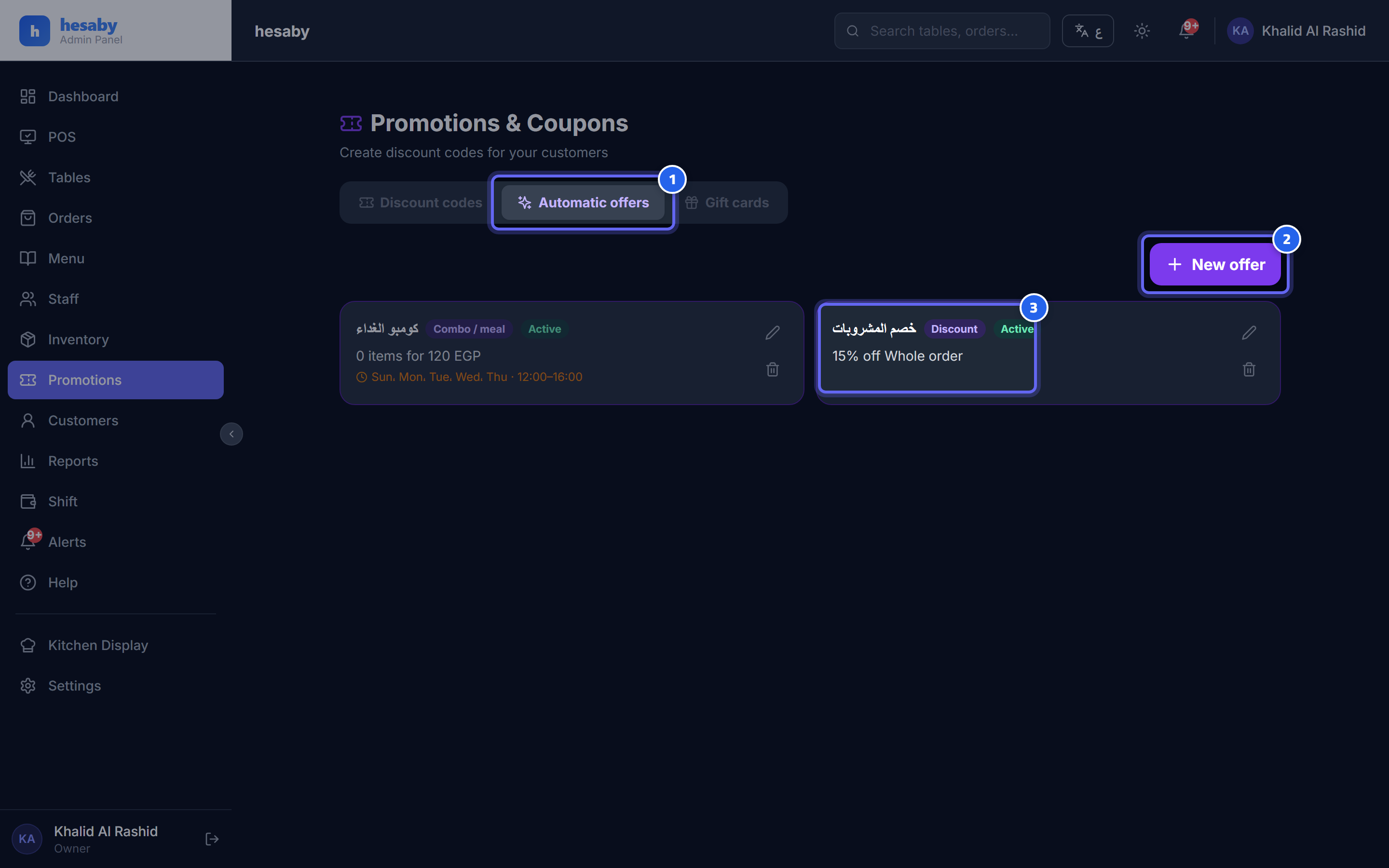
- Automatic offers tab
- "New offer" button: Combo / BOGO / category discount
- Offer card: name, type, and activation status
Where to manage it
- Promotions & Coupons.
- Open the Automatic offers tab.
- Click New offer.
Offer types
Choose the type that suits you from this table:
| Type | How it works | Example |
|---|---|---|
| Discount | A percentage % or fixed amount on the whole order, a specific category, or specific items | 20% on the drinks category |
| BOGO | Buy a certain number from a category/item and get a number at a % discount (100% = free) | Buy 1 pizza and get 1 free |
| Combo/meal | A group of items at a fixed price for the bundle | Burger + fries + drink for 120 EGP |
Activation time (Happy Hour)
You can set the days of the week the offer runs on, as well as from time / to time. This way the offer only runs during that period.
💡 If you leave the activation time empty, the offer will run all the time.
Priority
In the Priority field you enter a number. The offer with the higher number is applied first.
How it looks on the POS
When the cart matches the offer's conditions, it appears automatically as a line with a 🎉 mark in the order total. The cashier doesn't enter any code at all.
⚠️ Note: Offers stack with each other and with the coupon, but the discount on a single item never exceeds its price — meaning there's no negative price.
💡 Offer management is available only to the owner, admin, and manager.